How to convert RAW to JPG – exporting camera files the right way
RAW files are your camera's digital negative: rich in image data, but bulky and unreadable in browsers without a converter. To share or upload, you convert them to JPG — ideally after a quick edit.
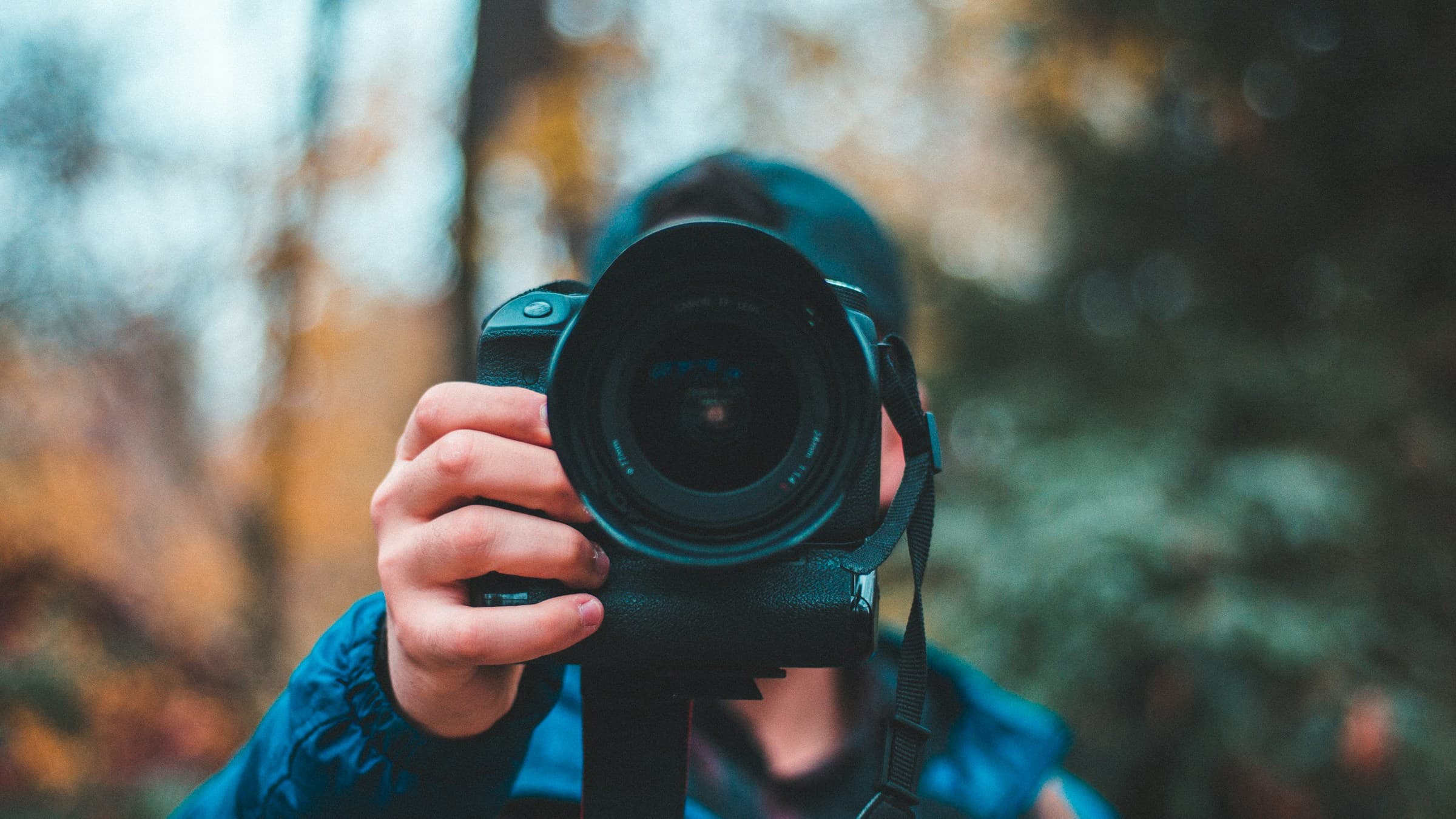
Why RAW is raw material, not a photo
RAW (CR2, NEF, ARW, DNG…) stores the unprocessed sensor data from your camera. Exposure, white balance and saturation come along as metadata — the actual 'image' is created during development. That's why RAWs often look flat in preview apps.
JPG is the finished picture: exposure, contrast and colour are baked in. What you see is what you get — with the downside that later corrections cost quality.
Convert RAW to JPG online
Pixshift supports common RAW formats (Canon, Nikon, Sony, Fuji and more) right in the browser. Pick JPG as target, optionally set a quality (85–92 is a sensible starting point) and download the finished pictures. Resize to web dimensions in the same step if needed.
For maximum quality, develop the RAW in an editor first (Lightroom, darktable, Capture One) and export JPG from there. For batch jobs or quick previews, the online route wins on sheer simplicity.
The number-one tip: keep the originals
Never delete your RAWs after export. JPGs are lossy and can't be turned back into raw data. If in five years you want a different look, you'll need the RAW.
Tight on storage? Archive RAWs to an external drive or cloud. A 1 TB SSD costs less than a day-long photo trip — and holds your complete original library.
What white balance carries through?
On a direct RAW→JPG with no editing, the converter takes the camera white balance from the metadata. Does the photo look neutral? Then you're fine. If not, the JPG offers no recovery — it lacks RAW's 12-bit headroom.
Tip: tweak white balance in a RAW editor first (free darktable works). Per 1000 photos, the Lightroom workflow earns its keep; for snapshots, Pixshift's direct conversion is plenty.
Related articles
 Conversion
How to convert HEIC to JPG – guide for Windows, Mac and online
iPhone photos in HEIC format can be turned into JPG in just a few clicks. We show the fastest ways on Windows, Mac and in the browser.
 Conversion
How to convert JPG to WebP – faster loads, less bandwidth
WebP saves up to 35% over JPG at comparable quality. Here's how to convert images quickly and without quality loss into the modern format.
 Conversion
How to convert PSD to PNG – no Photoshop, right in the browser
Turn Photoshop PSD files into PNG without installed software. Here's how to access your layout without an Adobe subscription.