How to convert JPG to WebP – faster loads, less bandwidth
If you publish images on the web, swap JPG for WebP. Google's modern format delivers the same visual quality at notably smaller file sizes — load times drop, Core Web Vitals improve, and mobile visitors save data.
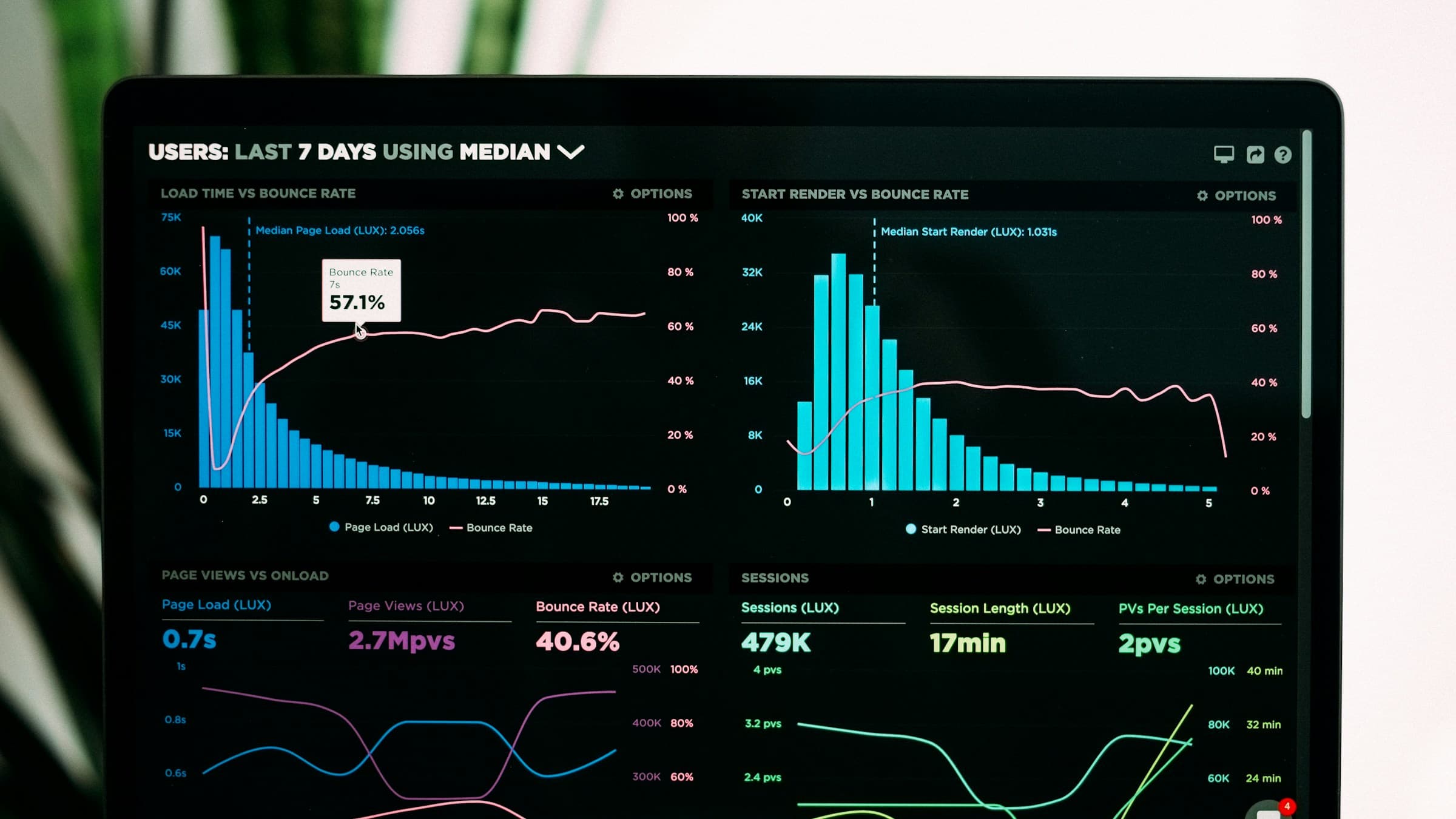
Why WebP beats JPG
WebP uses newer compression techniques than JPG, which dates back to 1992. Lossy WebP is on average 25–35% smaller; lossless WebP is around 26% smaller than PNG. That means faster pages and lower hosting costs.
Every modern browser has supported WebP for years: Chrome, Firefox, Edge, Safari (since macOS 11) and Opera. For very old browsers you can fall back to JPG via the `<picture>` element.
Convert JPG to WebP online
The easiest route is an online converter. Upload your JPGs, pick WebP as target and tweak the quality slider if needed (80 is usually the sweet spot). Smaller WebP files come back within seconds.
Pixshift processes the images directly in your browser — faster, more private, no upload to third-party servers. Even folders with hundreds of pictures convert in a single batch.
When to stick with JPG
For print, archives or sending files to recipients on legacy software, JPG remains the safer pick. Email clients also don't all render WebP — you risk missing previews.
Rule of thumb: web → WebP (or better, AVIF), everything else → JPG. Always keep the originals — WebP is lossy and converting back won't restore quality.
WordPress, Shopify and friends: what to watch
WordPress has supported WebP natively since 5.8, so you can upload WebPs directly. Older themes or plugins sometimes choke — purging caches and checking the regenerated thumbnails once saves headaches.
Shopify accepts WebP in the theme but not always in product galleries. The fallback: upload the JPG original and let Shopify generate its own WebP versions for delivery. The frontend wins anyway.
Related articles
 Conversion
How to convert HEIC to JPG – guide for Windows, Mac and online
iPhone photos in HEIC format can be turned into JPG in just a few clicks. We show the fastest ways on Windows, Mac and in the browser.
 Conversion
How to convert PSD to PNG – no Photoshop, right in the browser
Turn Photoshop PSD files into PNG without installed software. Here's how to access your layout without an Adobe subscription.
 Conversion
How to convert RAW to JPG – exporting camera files the right way
Turn RAW files into high-quality JPGs — with tips on exposure, white balance and sharpening. Get your photo session shareable.