How to convert PSD to PNG – no Photoshop, right in the browser
Got a PSD file and no Photoshop installed? No problem: today's browsers can open PSDs and export them as PNG — transparency intact and layers flattened — in one go.
What gets lost on export
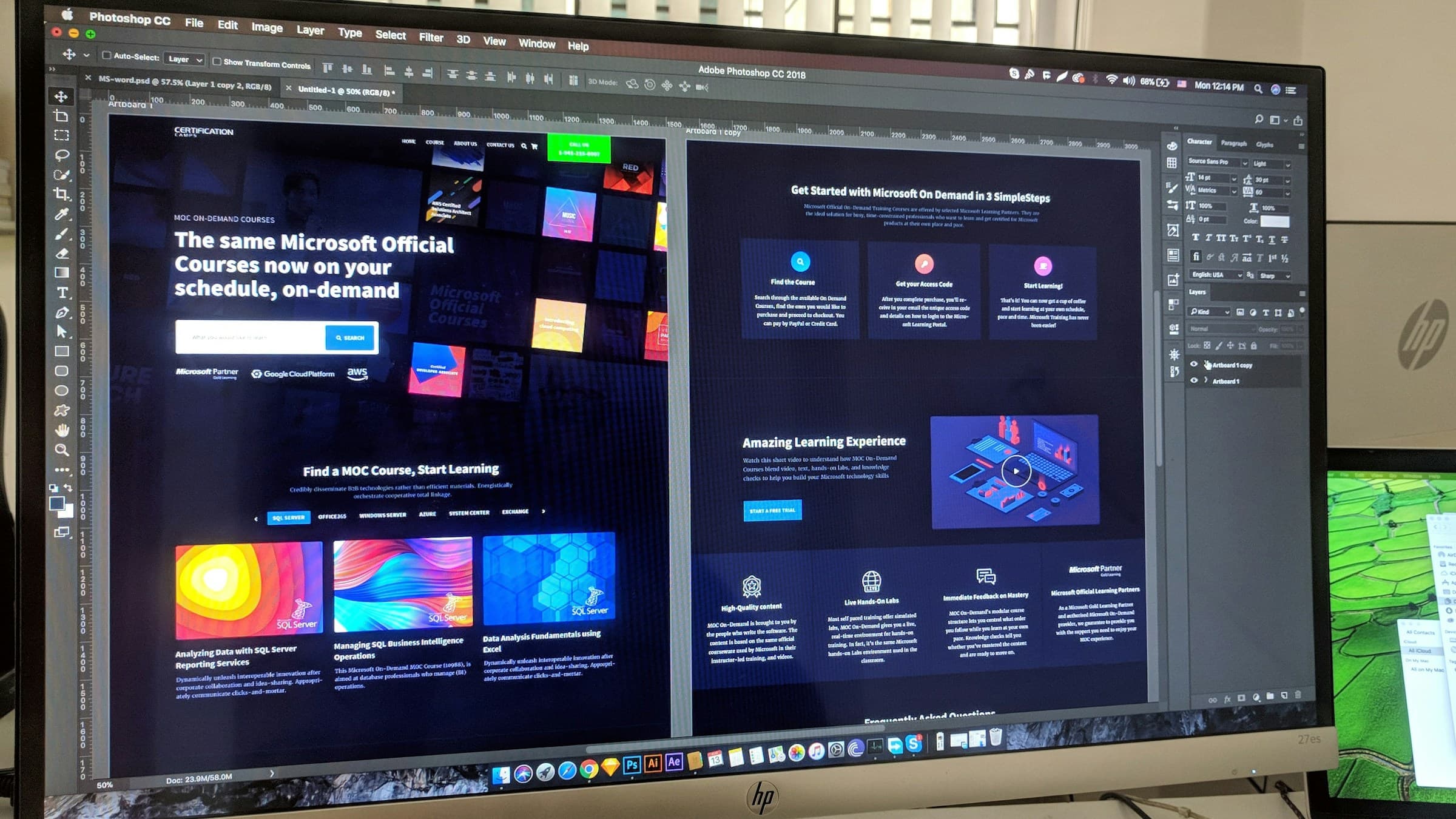
PSD stores layers, masks, smart objects and effects. PNG is a flat image format — exporting flattens all visible layers into a single image. Effects are rendered out, hidden layers ignored.
If you'll edit later, keep the PSD as your master. The PNG is just the final picture — a snapshot of the result, not the blueprint.
Convert PSD to PNG online
On Pixshift you upload the PSD and pick PNG as the target. The tool renders visible layers and keeps transparency wherever possible. You get a sharp PNG at the original size.
Heads up: the background layer in many PSDs isn't transparent. If you need a clean alpha channel, delete or hide the background in the source file before converting.
When JPG is the smarter pick
PNG is lossless but bulky. For photos or full-bleed images without transparency, JPG saves a lot of space at nearly identical quality — often 60–80%. For logos, icons and screenshots, PNG remains the right call.
If you're publishing to a modern website anyway, WebP is even smaller and supports transparency too — two birds with one stone.
What actually gets rendered on conversion?
Pixshift treats the PSD like Photoshop's preview composite: it takes the visible layer stack, applies effects and flattens it. Smart objects are rasterized at their current resolution.
What may not carry over: adjustment layers with complex masks can occasionally look different than in Photoshop. If the result doesn't match, flatten in Photoshop and export from there — that's the gold standard.
Related articles
 Conversion
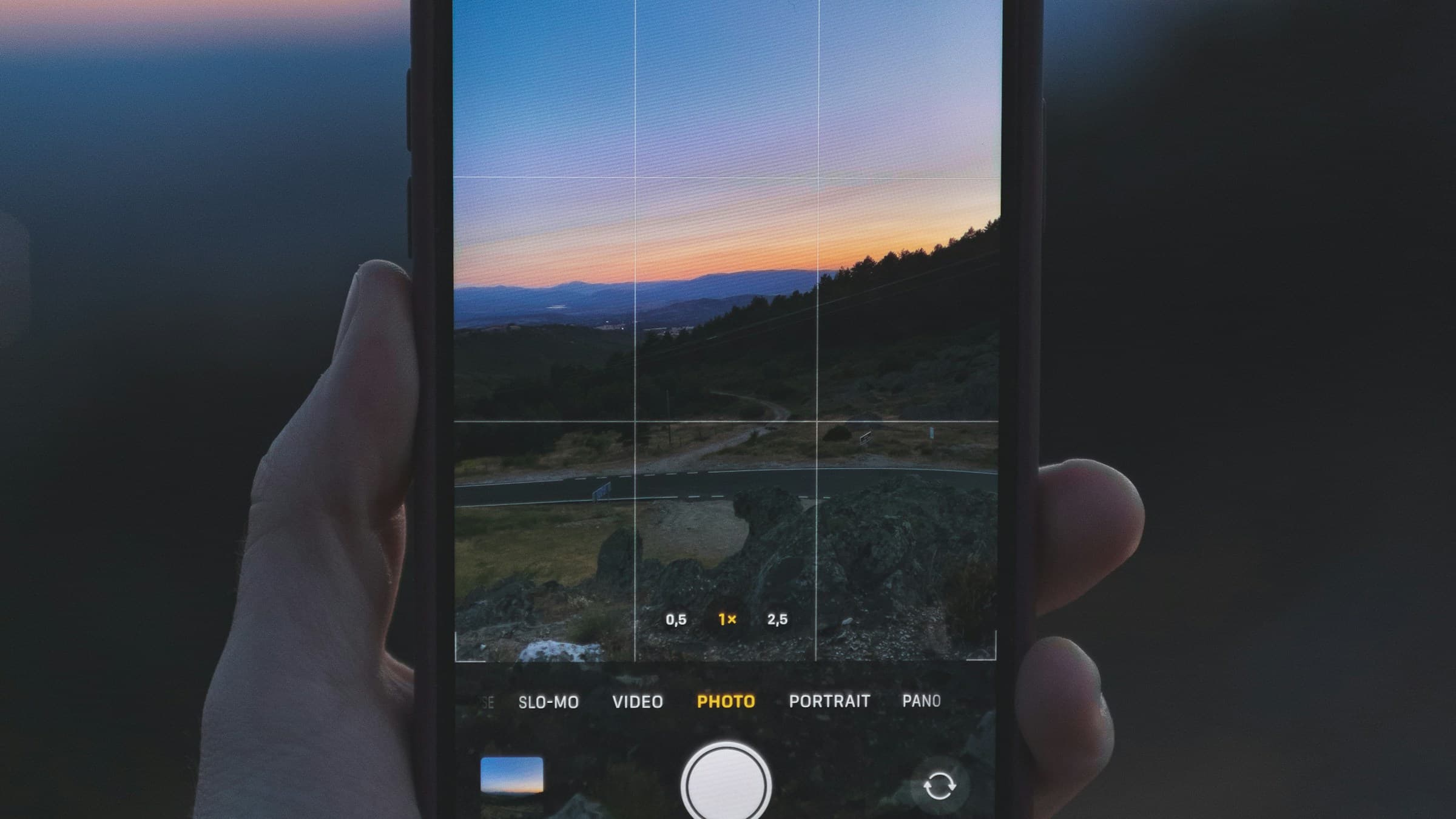
How to convert HEIC to JPG – guide for Windows, Mac and online
iPhone photos in HEIC format can be turned into JPG in just a few clicks. We show the fastest ways on Windows, Mac and in the browser.
 Conversion
How to convert JPG to WebP – faster loads, less bandwidth
WebP saves up to 35% over JPG at comparable quality. Here's how to convert images quickly and without quality loss into the modern format.
 Conversion
How to convert RAW to JPG – exporting camera files the right way
Turn RAW files into high-quality JPGs — with tips on exposure, white balance and sharpening. Get your photo session shareable.