How to scale images without going mushy – best practices
Scaling sounds like 'shuffle pixels'. In reality the software invents new pixels or discards old ones — and depending on the algorithm, the result looks crisp or smeared. A handful of rules will get the most out of your image.
Upscaling — the uncomfortable truth
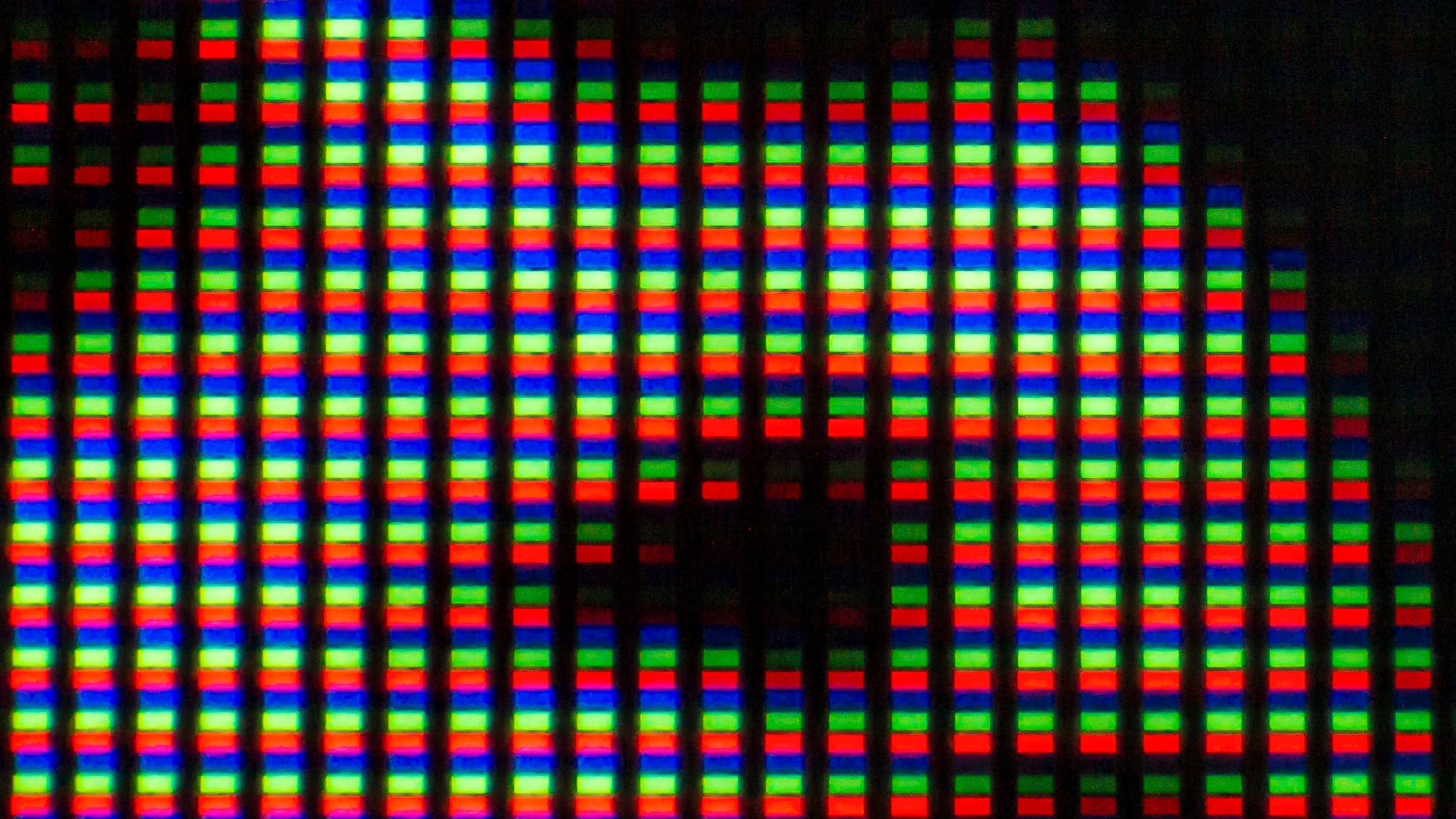
Stretch an 800×600 image to 1600×1200 and software must invent 75% of the pixels. Classic algorithms (bilinear, bicubic) interpolate neighbouring values — the result is softened or washed out.
Modern AI upscalers (ESRGAN, Real-ESRGAN, Topaz Photo AI) deliver dramatically better results by reconstructing structure. Worth the extra effort for occasional upscaling; for habitual large-print work, shoot at higher resolution to begin with.
Downscaling — what to watch for
Making images smaller is easy — sometimes results are even sharper than the original. Use Lanczos or a good bicubic-sharp filter so edges stay crisp. Avoid bilinear, which looks mushy.
Crucially: always target the actual display size. Uploading a 4000 px file for a 1200 px layout wastes bandwidth and helps nobody.
Sharpening after scaling
After resizing down, an image often looks slightly softer than the original. A light unsharp mask (radius 0.3–0.5 px, strength 50%) brings the crispness back.
Web workflow: scale first, compress second. Shrinking the file simplifies the content, and the lossy compression then has less to work against — so you avoid stacking losses on already-softened areas.
How AI upscalers really fare today
Topaz Photo AI, Real-ESRGAN, Stability's Upscaler — they all use neural nets to plausibly invent detail when upscaling. On portraits and natural scenes the results are impressive.
The limit: AI guesses what was probably there — and can hallucinate text, buttons or unfamiliar fonts. On screenshots, logos or diagrams, classic Lanczos upscaling is often safer. Rule of thumb: photo -> AI, graphic -> Lanczos.
Resize images without quality loss
Scale to your target size with professional algorithms.
Open ResizerRelated articles
 Guide
GuideHow to compress images without losing quality – practical guide
Cut image file sizes by up to 80% without anyone noticing. Tips on quality levels, formats and the most common mistakes.
 Guide
GuideImage sizes for social media in 2026 – Instagram, Facebook, LinkedIn & co.
Up-to-date dimensions for Instagram posts, Facebook covers, LinkedIn banners and more. No cropping drama, perfectly crisp.
 Guide
GuideOptimal aspect ratios for cropping – the practical guide
1:1, 4:3, 16:9 or 9:16? A clear overview of which aspect ratio fits which purpose — including print measurements.